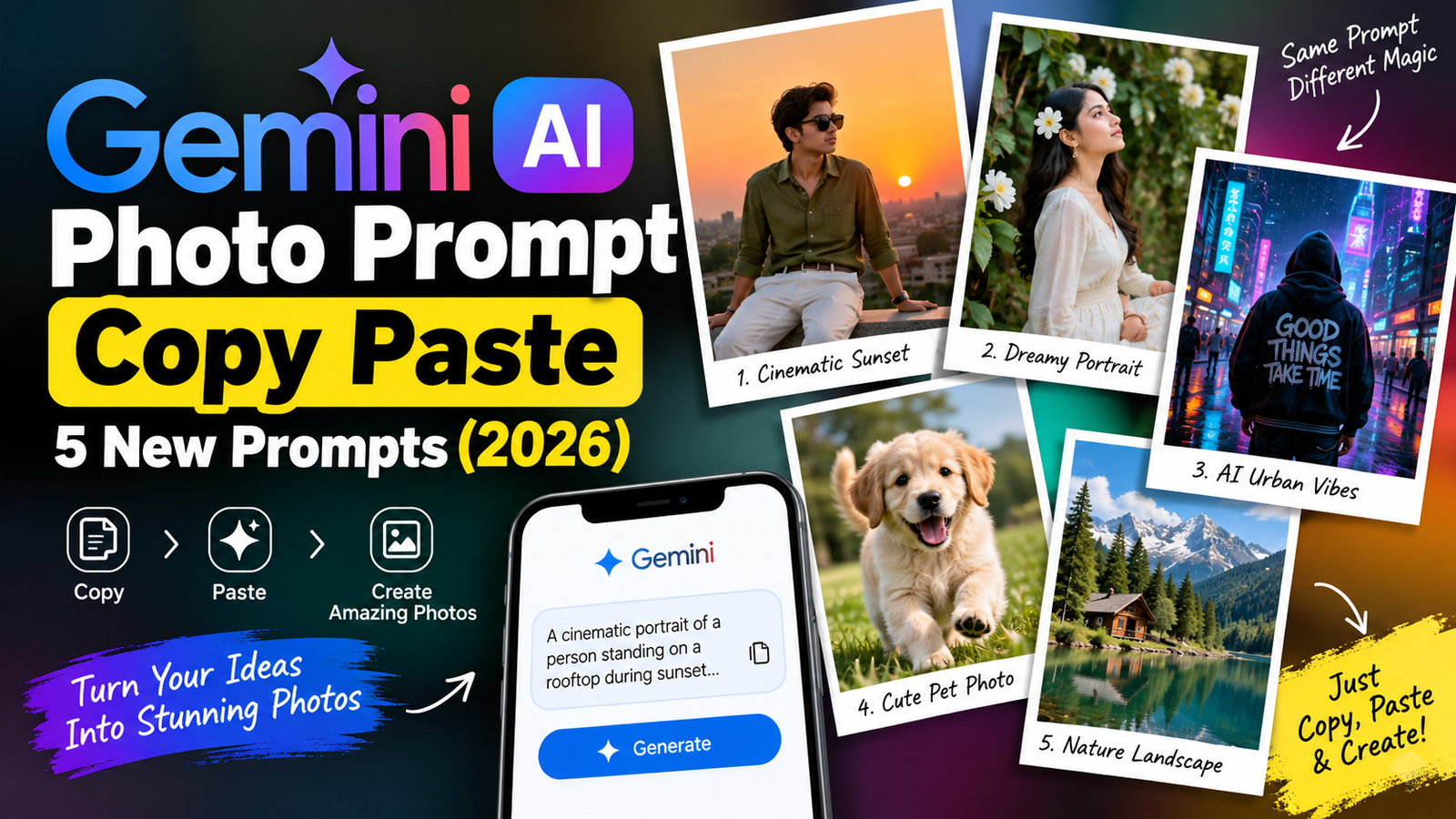
Gemini AI Photo Prompt Copy Paste: 5 New Prompts for Natural-Looking Edits (2026)
You find a nice Gemini photo prompt online, upload your selfie, hit send, and the result looks like a different ... <p class="read-more-container"><a title="Gemini AI Photo Prompt Copy Paste: 5 New Prompts for Natural-Looking Edits (2026)" class="read-more button" href="https://trendingprompt.in/gemini-ai-photo-prompt-copy-paste-2/#more-2714" aria-label="More on Gemini AI Photo Prompt Copy Paste: 5 New Prompts for Natural-Looking Edits (2026)">Read more</a></p>
Related Prompts & Guides
10+ Best AI Birthday Photo Editing Prompts for Girls: Viral ChatGPT & Gemini Prompts (2026)
AI Birthday Photo Editing Prompts for Girls Want to create beautiful birthday photos without booking a…
Halloween AI Photo Prompts: 12 Gemini Prompts for Spooky, Cute and Cinematic Edits (2026)
Halloween AI Photo Prompts Every October, the same costume photos fill Instagram and Pinterest. Pumpkin patch…
10 Best AI Guitar Photo Prompts for Girls 2026 Aesthetic, Realistic & Cinematic Portraits for ChatGPT & Google Gemini
10 Best AI Guitar Photo Prompts for Girls (2026) Introduction: Create Beautiful AI Guitar Photos Are…
You find a nice Gemini photo prompt online, upload your selfie, hit send, and the result looks like a different person in a strange background. It happens to almost everyone. If you search for a Gemini AI photo prompt copy paste every time you want an edit, the real problem is usually not Gemini. It is how the prompt is written and what you feed it.
This guide gives you 5 prompts you can copy and paste, each with a short note on when to use it and how to fix it if it goes wrong. You will also learn a few habits that matter more than any single prompt.
Why Copy-Paste Prompts Sometimes Fail
A prompt is like a set of instructions for a photographer who has never met you. If the instructions are vague, the photographer guesses. Three things go wrong most often:
- The photo is weak. A dark, blurry or heavily filtered selfie leaves Gemini with little to work with.
- Nothing is protected. If you do not say “keep my face the same,” Gemini may quietly change your features.
- Too much is asked at once. A prompt that changes the outfit, background, lighting and style together gives the AI too many places to slip.
Every prompt below is built to avoid these three problems.
Gemini AI Photo Prompt Copy Paste: How to Use It the Right Way
- Open the Gemini app or website and sign in with your Google account.
- Upload one clear photo of yourself, ideally taken in daylight, facing the camera.
- Paste the prompt and change the text inside [brackets] to suit you.
- Send it and wait for the image.
- Zoom in and check your face, hair edges, hands and any random text.
- If it is nearly right, send one short follow-up such as “Make the lighting softer” instead of starting again.
Free limits and image features change from time to time, so check the Gemini Apps Help Center to see what your account currently allows.
Prompt 1: Soft Window-Light Cafe Portrait
Not every good photo needs drama. This prompt gives a calm, natural look, like a portrait taken beside a cafe window on a quiet morning.
Edit this photo so it looks like I am sitting beside a large window in a cosy cafe in the morning. Add soft, natural daylight coming from the window on my left, with gentle shadows on the right side of my face. Show a softly blurred cafe interior behind me with warm wooden tables and a few small plants. Keep my face, facial features, skin tone, hairstyle, expression and clothes exactly the same. Keep natural skin texture and do not retouch or smooth my skin. Do not add text, logos or extra people. It should look like a real photograph taken with a phone camera in portrait mode.
Good for: Instagram feed posts, blog author photos, casual profile pictures.
Why it works: Naming the side of the window light gives your face natural shape. Without it, the light usually looks flat and even.
If it goes wrong: If the cafe looks too crowded, send “Make the background simpler with fewer objects.”
Prompt 2: Classic Black and White Portrait
A black and white edit removes colour distractions and puts all attention on expression and light. It also hides small colour mistakes that AI sometimes makes.
Convert this photo into a classic black and white portrait with rich contrast and deep, smooth shadows. Use soft side lighting that shapes my face and keep fine detail in my hair and clothes. Add very light film grain, but no heavy filters or borders. Keep my face, facial features, expression, hairstyle, pose and clothes exactly the same. Do not add text, frames or extra people. It should look like a timeless portrait shot on black and white film.
Good for: Profile pictures, personal branding, artistic posts.
Why it works: Asking for smooth shadows and fine detail keeps the image from turning into a harsh grey filter.
If it goes wrong: If the image looks too dark, send “Lift the shadows a little and keep the contrast soft.”
Prompt 3: Snowy Hill Station Look
This gives your photo a winter setting with light snowfall and mountains. It suits people who want a travel-style picture without visiting the hills.
Place me in a quiet snowy hill station with pine trees and soft snow-covered mountains far behind me. Add light snowfall and cool, pale winter daylight with a slight blue tone. Make the background gently blurred so I stay sharp and clear. Keep my face, facial features, expression, hairstyle, pose and clothes exactly the same, and match the light on my skin to the scene so it does not look pasted. Do not add extra people, text or watermarks. It should look like a real travel photo.
Good for: Travel posts, winter stories, holiday wishes.
Why it works: The line about matching the light on your skin stops the “cut-out pasted on a background” effect that ruins many scene changes.
If it goes wrong: If your face looks too warm against the cold scene, send “Match my skin tones to the cool winter light.”
Prompt 4: Double Exposure Forest Silhouette
Double exposure is a creative photography style where two images blend into one. Here, a forest appears inside the outline of your portrait. It is one of the most distinctive looks you can make with a single prompt.
Turn this photo into an artistic double exposure portrait. Show my side profile as a smooth silhouette filled with a misty green forest, tall trees and soft morning fog. Keep the background a plain, light off-white so the silhouette stands out. Keep my face shape, hairstyle and expression recognisable at the edge of the silhouette. Use soft, natural tones and clean edges. Do not add text, frames or extra people. It should look like a professional fine-art photograph.
Good for: Creative profile pictures, book or blog covers, artistic posts.
Why it works: Asking for a plain light background gives Gemini clean edges to work with, which is the hardest part of this style.
If it goes wrong: If the forest is too dark, send “Make the forest lighter and more transparent so my face shape is easy to see.” A front-facing photo may give weaker results than a side-facing one.
Prompt 5: Colourful Old-Lane Street Portrait
Indian lanes with bright painted walls make excellent backdrops. This prompt gives the confident, editorial look you see in street-style shoots.
Edit this photo so I am standing in a narrow old lane in an Indian town, in front of a bright hand-painted wall in [mustard yellow / teal / pink]. Add soft afternoon sunlight with light shadows and a few blurred bicycles and doorways in the background. Use a slightly low camera angle so I look confident. Keep my face, facial features, expression, hairstyle, pose and clothes exactly the same. Do not add text, shop signs with readable words or extra people. It should look like a real street-style photograph.
Good for: Fashion posts, personal brand photos, colourful Instagram grids.
Why it works: Asking for no readable shop signs avoids the garbled, nonsense text that AI often puts on walls and boards.
If it goes wrong: If the wall colour overpowers your outfit, ask for “a more muted wall colour so my clothes stand out.”
Quick Fixes for Common Problems
- Face looks different: Use a sharper photo and repeat “Keep my face exactly the same” in a follow-up message.
- Colours look too strong: Send “Reduce the colour grading and keep the tones natural.”
- Gemini skips part of the prompt: Send the main scene first and add the extra details in a second message.
- Hands look odd: Pick a photo where your hands are hidden or simply placed.
- Bad cropping: Add “Keep the original framing” to your prompt.
Use AI Photo Edits Responsibly
- Upload only your own photos or photos you have permission to edit.
- Never upload ID cards, documents or private images.
- Do not use AI edits to fake events or pretend to be someone else.
- Many exam forms and government portals need an unedited photo, so read the rules before uploading.
- If you share an AI-edited image publicly, it is good practice to say it was edited.
Frequently Asked Questions
Are these Gemini AI photo prompts free to copy?
Yes, you can copy all of them. Whether Gemini itself is free depends on its current plan and daily limits.
Why does Gemini change my face?
Usually the original photo is unclear, the prompt is too long, or the “keep unchanged” line has been removed. Use a better photo and keep that line.
Can I use these prompts on ChatGPT or other AI tools?
Most will work on other AI image editors, but the results differ because each tool handles images in its own way.
Can I write the prompt in Hindi?
Gemini understands Hindi and Hinglish. For lighting and style details, English usually gives more precise results.
Should I edit the prompt before using it?
Yes. Change the background, colours and mood to suit your photo. A small personal change often works better than pasting it exactly as written.
How many times should I regenerate?
Two or three tries are normal. If it still looks wrong, simplify the prompt or use a better starting photo.
Conclusion
A good Gemini AI photo prompt copy paste helps, but the result depends on a clear photo, a strong “keep unchanged” line and a few small follow-up edits. Begin with the window-light portrait, then try the other four looks one at a time, changing only one detail per attempt so you learn what works for your own photos.
For more free, ready-to-use prompt guides, visit Trendingprompt.