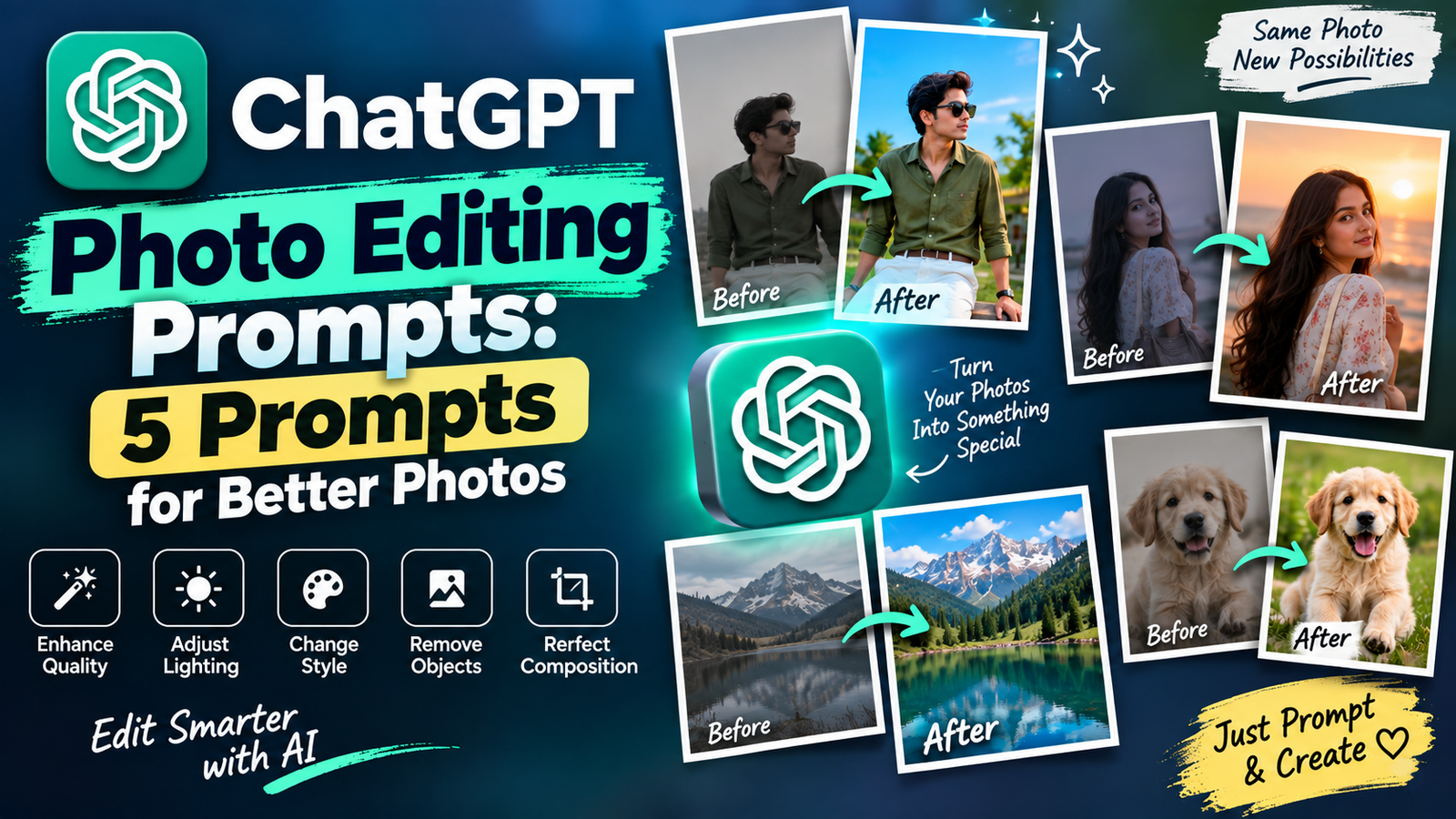
Most people use ChatGPT for writing, but it can also edit photos. You upload a picture, describe the change in plain words, and it gives you a new version. The catch is that vague requests like “make this better” give random results. Good ChatGPT photo editing prompts are specific about what to fix and what to leave alone.
This guide gives you 5 prompts for everyday problems: a dark photo, a messy background, a product picture for online selling, an old faded photo and a festive portrait. Each one comes with a note on when to use it and how to fix it if the result is not right.
How ChatGPT Edits Photos (And Why Faces Sometimes Change)
When you upload a photo and ask for an edit, ChatGPT usually creates a new image based on your original rather than changing pixels one by one like Photoshop. That is why results can differ slightly from the original, especially in faces, small text and fine patterns.
This is normal, and you can reduce it in three ways:
- Ask for one main change per prompt. A prompt that fixes the light, changes the background and adds a style at the same time is more likely to drift.
- State what must stay the same. Every prompt below has a line that protects the face, clothes or product.
- Upload the best version you have. A sharp, uncompressed photo gives better results than a screenshot from WhatsApp.
Features and free usage limits for images change often, so check the OpenAI Help Center to see what your plan allows.
How to Use ChatGPT Photo Editing Prompts
- Open ChatGPT on your phone or computer.
- Tap the attachment icon and upload your photo.
- Paste the prompt and change any text inside [brackets].
- Send it and wait for the image.
- Zoom in and check faces, hands, edges and any text.
- If it is close, reply with one small change, such as “Make it slightly warmer.” You do not need to start over.
Prompt 1: Fix a Dark or Low-Light Photo
Evening photos, restaurant pictures and indoor shots often come out dark and grainy. This prompt brightens the image without making it look fake.
Fix this dark, low-light photo. Brighten the image so the details are clearly visible, reduce the grain and noise, and correct the colours so they look natural. Do not add filters, do not change the mood of the scene and do not change anyone's face, skin tone or clothes. Keep the original framing and every object in the same position. The result should look like it was taken in good indoor lighting with a normal phone camera.
Good for: Family gatherings, restaurant photos, evening street shots, concert or event pictures.
Why it works: The line “do not change the mood of the scene” stops ChatGPT from turning a cosy evening into a bright daytime picture.
If it goes wrong: If the skin looks too smooth, send “Bring back natural skin texture and slightly reduce the noise cleanup.”
Prompt 2: Clean Up a Messy Background
You take a great photo at home or on the road, but there is a wire, a bin or a stranger walking behind you. This prompt tidies the scene while keeping it believable.
Clean up the background of this photo. Remove [the electric wires / the dustbin / the people in the background] and fill the space naturally so it matches the surroundings. Keep the main subject, their pose, face, clothes and the lighting exactly the same. Do not change the colours or add new objects. The result should look like the original photo, only tidier.
Good for: Travel photos, home portraits, festival pictures at crowded places.
Why it works: Naming exactly what to remove stops ChatGPT from deleting things you wanted to keep. “Fill the space naturally” tells it to rebuild the area instead of leaving a patch.
If it goes wrong: If the filled area looks blurry or repeated, send “Rebuild that area with more realistic detail matching the rest of the photo.” For a big background change, do it in two steps.
Prompt 3: Turn a Phone Photo into a Clean Product Picture
Small sellers on Instagram, WhatsApp catalogues and online marketplaces often shoot products on a bed or table. This prompt gives the product a clean, shop-style look without a studio.
Turn this phone photo of my product into a clean e-commerce product image. Place the product on a plain off-white surface with a soft shadow beneath it. Use soft, even lighting from the top-left and remove reflections and dust. Keep the product's exact shape, colour, size, texture, logo and label unchanged. Do not add extra props, text or watermarks. The result should look like a professional product photo for an online store.
Good for: Handmade items, jewellery, candles, bags, food packaging, small shop catalogues.
Why it works: The strongest line is “keep the exact shape, colour, logo and label unchanged.” For selling, a product that looks different from the real item causes returns and complaints.
If it goes wrong: If a logo or label text looks wrong, do not use the image as it is. AI often rewrites small text, so compare it with the real product before posting. You can also ask “Keep the label text exactly as in the original photo,” but always check the result yourself.
Prompt 4: Restore an Old Family Photo
Old prints get faded, scratched and creased over the years. This prompt repairs the damage and keeps the people looking like themselves.
Restore this old, damaged photograph. Remove scratches, creases, stains and dust spots, repair the faded areas and improve the sharpness carefully. Keep the faces, expressions, hairstyles, clothes and poses exactly true to the original. Do not add or remove any person or object. Keep the photo in black and white [or: add soft, natural colour]. The result should look like a clean scan of the same original photo.
Good for: Grandparents’ photos, wedding pictures from earlier decades, old school or family group photos.
Why it works: “Exactly true to the original” is the key line. Without it, ChatGPT may sharpen a face so much that it starts to look like a different person.
If it goes wrong: If a face looks changed, use a tighter version of the photo with just that person and ask “Only repair the damage on this face without changing the features.” For a precious photo, keep the original scan safe and treat the AI result as a second version, not a replacement.
Prompt 5: Diwali Diya Light Portrait
Festival portraits look warm and personal when the light feels real. This prompt adds glowing diyas and soft festive light without turning the photo into a heavy filter.
Edit this photo so it looks like it was taken on Diwali evening at home. Add a few softly glowing diyas and warm fairy lights blurred in the background, with a gentle golden glow on the scene. Keep my face lit naturally and clearly visible, and make the light on my skin look warm and soft. Keep my face, facial features, skin tone, hairstyle, pose and traditional outfit exactly the same. Do not add text, greetings, fireworks over my face or extra people. The result should look like a real photograph taken in the evening.
Good for: Diwali wishes, family portraits, WhatsApp status, Instagram festive posts.
Why it works: Placing the diyas in the blurred background keeps the attention on you. If the flames sit near your face, the AI can distort your features.
If it goes wrong: If the whole picture turns too orange, send “Reduce the orange glow and keep my skin tone natural.” Diwali falls in November 2026, so you can save this prompt for that week.
Quick Fixes for Common Problems
- Face looks slightly different: Use a sharper original and repeat “Keep my face exactly the same” in your next message.
- Text in the image looks wrong: Small text is one of the weakest points for AI images, so check labels and signs carefully.
- Result looks over-edited: Send “Make the edit more subtle and natural.”
- ChatGPT ignores part of the prompt: Break it into two messages. Send the main change first, and the extra details after.
- The image is cropped: Add “Keep the original framing and aspect ratio.”
Use AI Photo Edits Responsibly
- Upload only your own photos or photos you have permission to edit.
- Avoid uploading ID cards, documents or private pictures.
- Do not use AI edits to fake events, create false evidence or pretend to be someone else.
- Check the rules before using an edited photo for exams, jobs or government forms, since many need an unedited photograph.
- If you post an AI-edited photo publicly, it is good practice to mention it.
Frequently Asked Questions
Are these ChatGPT photo editing prompts free to use?
The prompts are free to copy. Whether ChatGPT lets you edit images on the free plan depends on its current limits, so check your account.
Can ChatGPT edit my photo without changing my face?
It can come close, but it is not perfect because it recreates the image. Adding a clear “keep my face exactly the same” line and using a sharp photo gives the best chance.
Is ChatGPT better than Gemini for photo editing?
Both work well for different things. It is worth trying the same photo on both and keeping the one that looks more natural to you.
Can I write these prompts in Hindi?
Yes. ChatGPT understands Hindi and Hinglish, though English usually gives more precise results for lighting and style details.
Can I use the same prompt on other AI tools?
Most of them work on other AI image editors, but the results will vary from tool to tool.
How many tries should I expect?
Two or three attempts are normal. If the result is still off, simplify the prompt or use a better original photo.
Conclusion
The best ChatGPT photo editing prompts do not try to change everything. They fix one problem clearly, protect the parts you want to keep and leave room for a small follow-up. Start with the dark photo fix or the background cleanup, since those are the easiest to check, and move to product, restoration and festive edits once you know how ChatGPT handles your pictures.
For more free, ready-to-use prompt guides, visit Trendingprompt.